Finding Scholarships
Glossary:
- Scholarship: Refers to academic scholarships/funding opportunities
- Profile: Your user account
- Step 1:
After you log into ApplyKite, go to Scholarships.
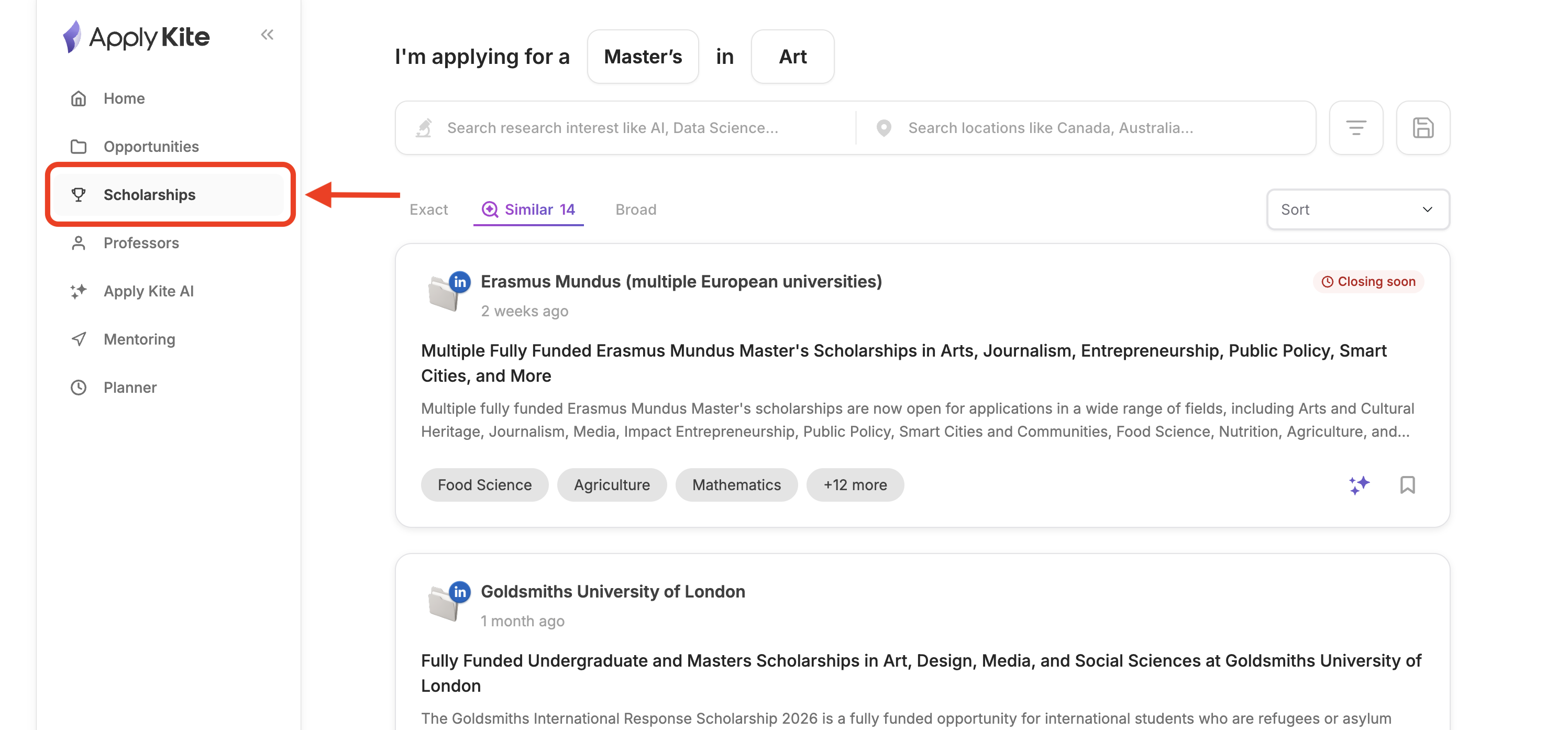
- Step 2:
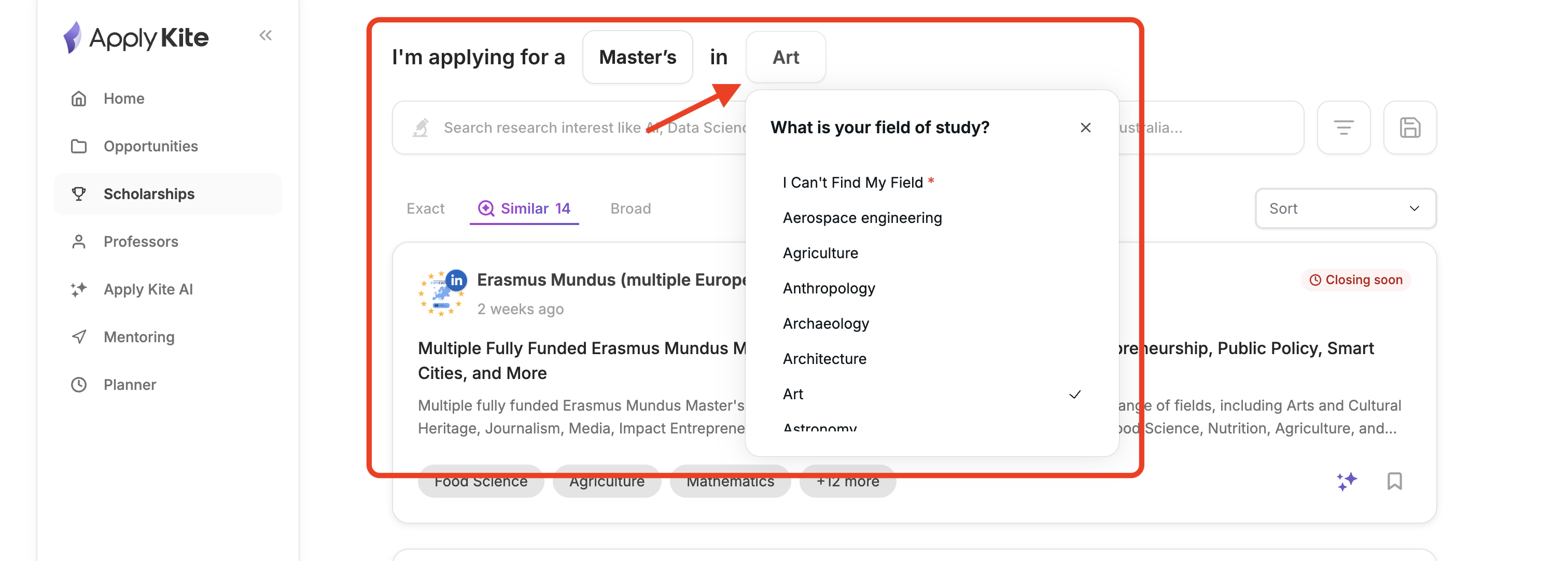
First, select your study level and field.
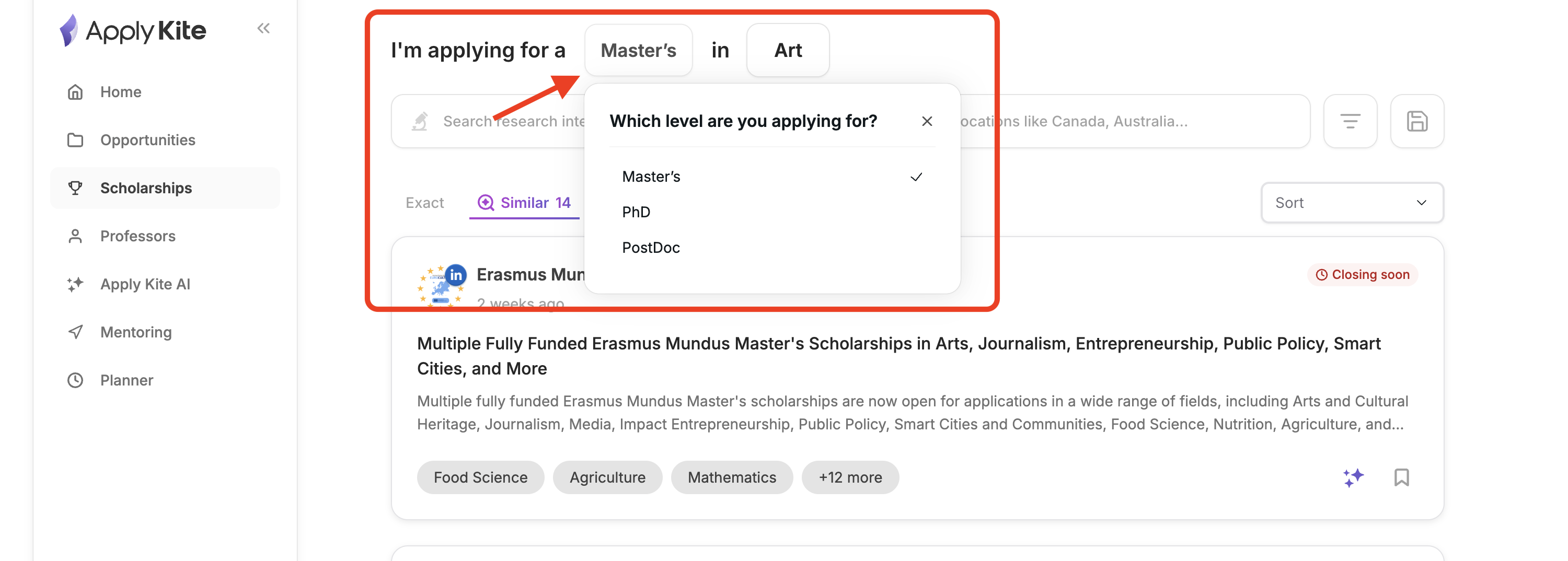
- Make sure you enter your study level correctly.
When choosing your field, you’ll see a list of general field names. If you can’t find your exact field, you can select I Can't Find My Field. - Note: If your field is close to an existing option, you can select the closest match.
You can always change your field and study level later—just update them from the relevant section.
Searching for Scholarships
- In the first step, enter keywords related to the scholarship you’re looking for.
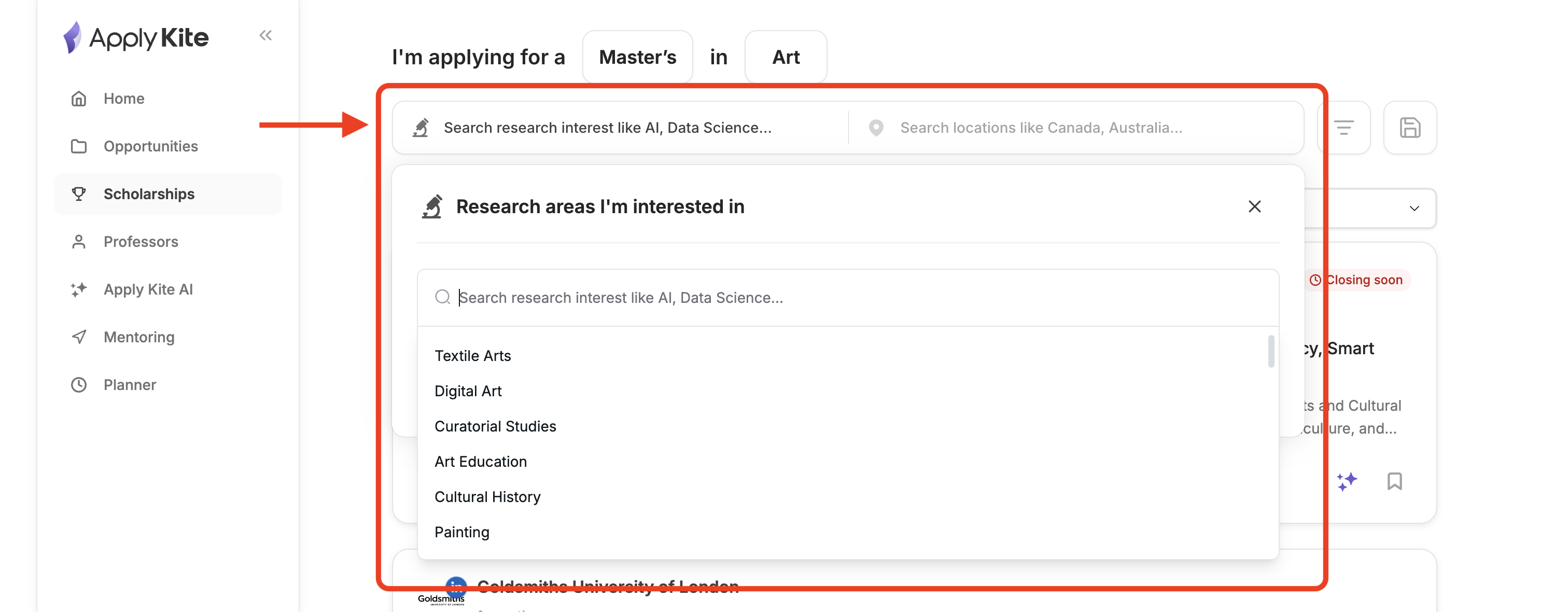
- You can also select your target country from here.
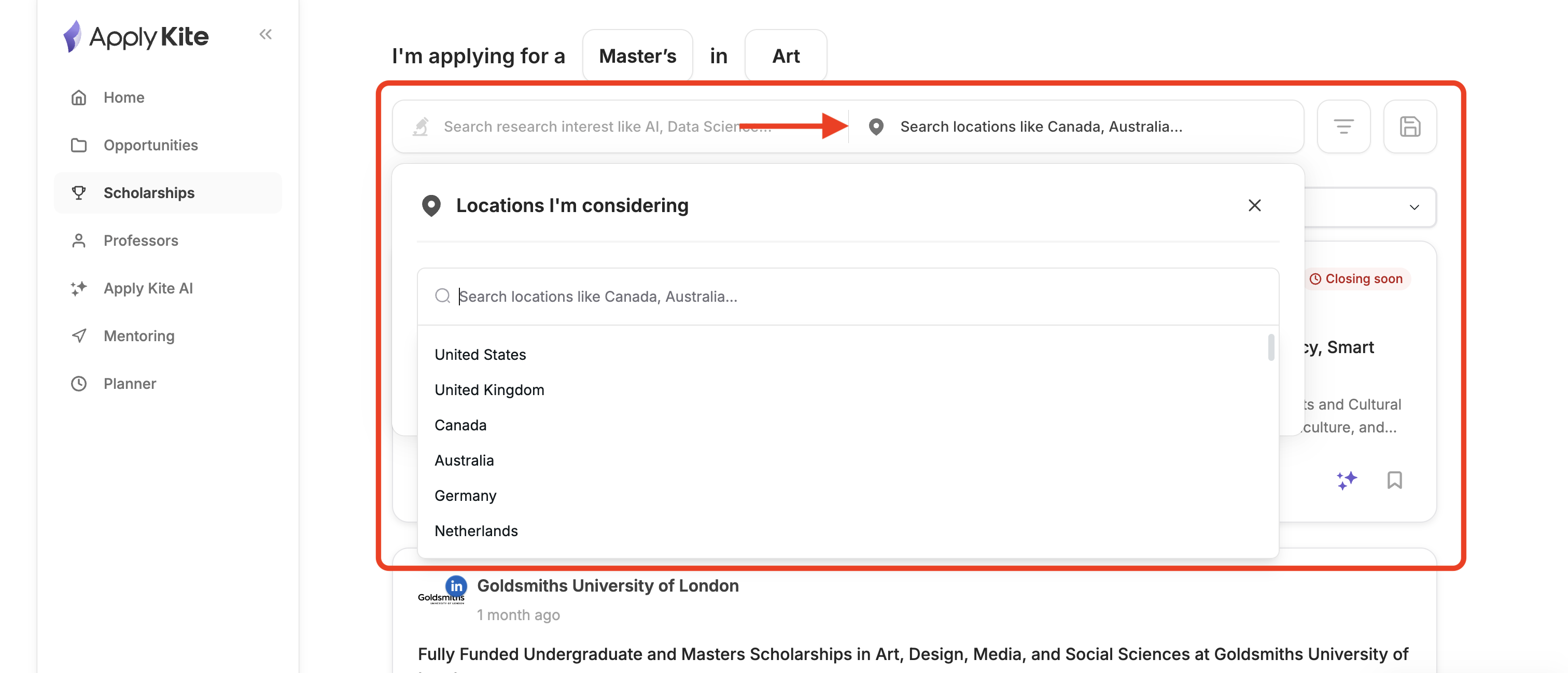
Important note:
-
Today, many scholarships are interdisciplinary. Also, the naming style of fields, programs, and research areas can vary across universities and countries. That’s why choosing keywords carefully matters.
-
To search, simply enter keywords related to your field. The more relevant keywords you add, the more accurate the results will be.
-
For example, Industrial Engineering may appear as Operations Research, or Telecommunications (Systems) might be listed as Wireless Communication. Try to build a smart mix of keywords.
-
Also, it’s better if your keywords are not just synonyms, because ApplyKite AI can already understand similar terms. For example, you don’t need to add both “Biomedical Applications” and “Healthcare Applications.” Instead, add keywords that broaden your scope in a meaningful way—like “Breast Cancer.”
-
If you use only one keyword, you may also see scholarships that overlap with your field. What does that mean?
-
Let’s say your profile field is Computer Science, and you only enter “Computer Science” as your keyword. You may see scholarships related to medicine, electrical engineering, and other areas too. That doesn’t mean the results are wrong.
-
Many scholarships support cross-disciplinary work. For example, a scholarship in a medical area may still require strong Computer Science skills.
-
To find scholarships that match your background more closely, simply enter a richer list of keywords related to your field.
For example:
- Classification Algorithms
- Algorithm Design
- Computer Science
- Python Programming
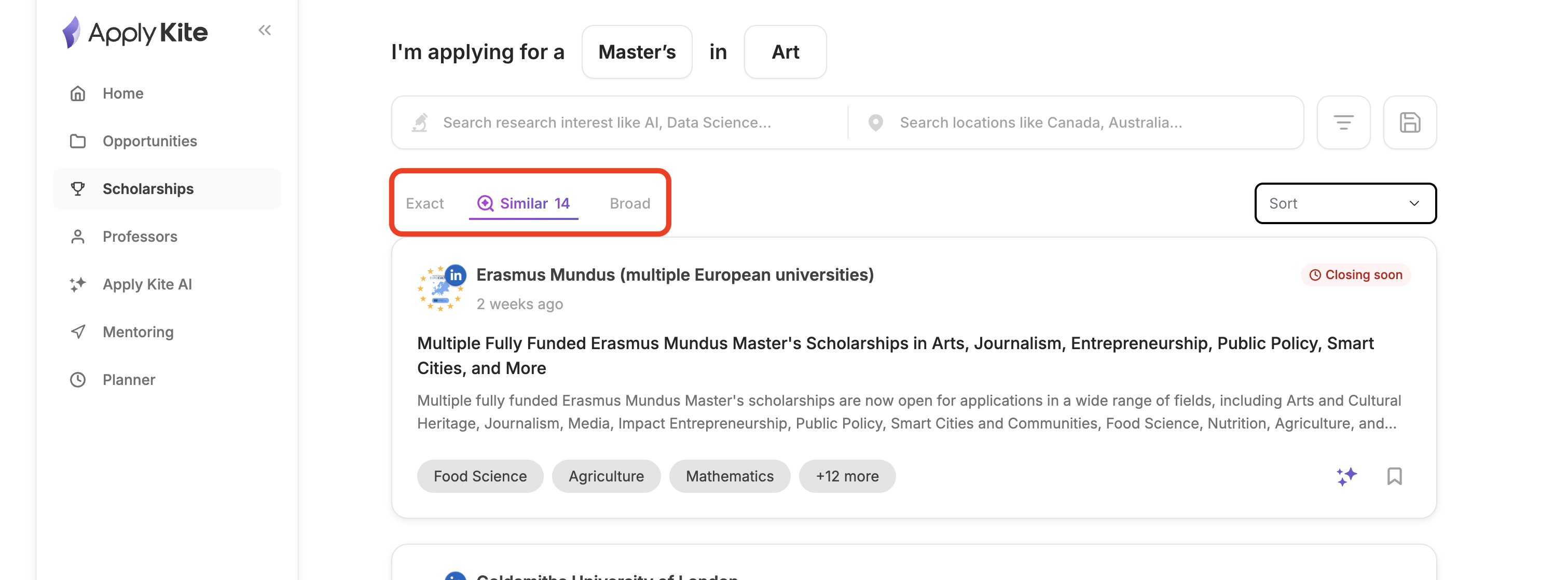
Now ApplyKite will show scholarships related to these keywords. After you enter your keywords, the system will ask how strict you want the matching to be.
For example:
-
Exact: Use this if you want results strictly limited to your keywords and directly related areas.
-
Similar: Use this if you want a balanced set of results.
-
Broad: Use this if you want to explore a wider range of results.
-
For example: You didn’t include “Algorithm Analysis” in your keyword list, but if you choose Similar or Broad, you may still see scholarships related to Algorithm Analysis in your results.
Other Filters
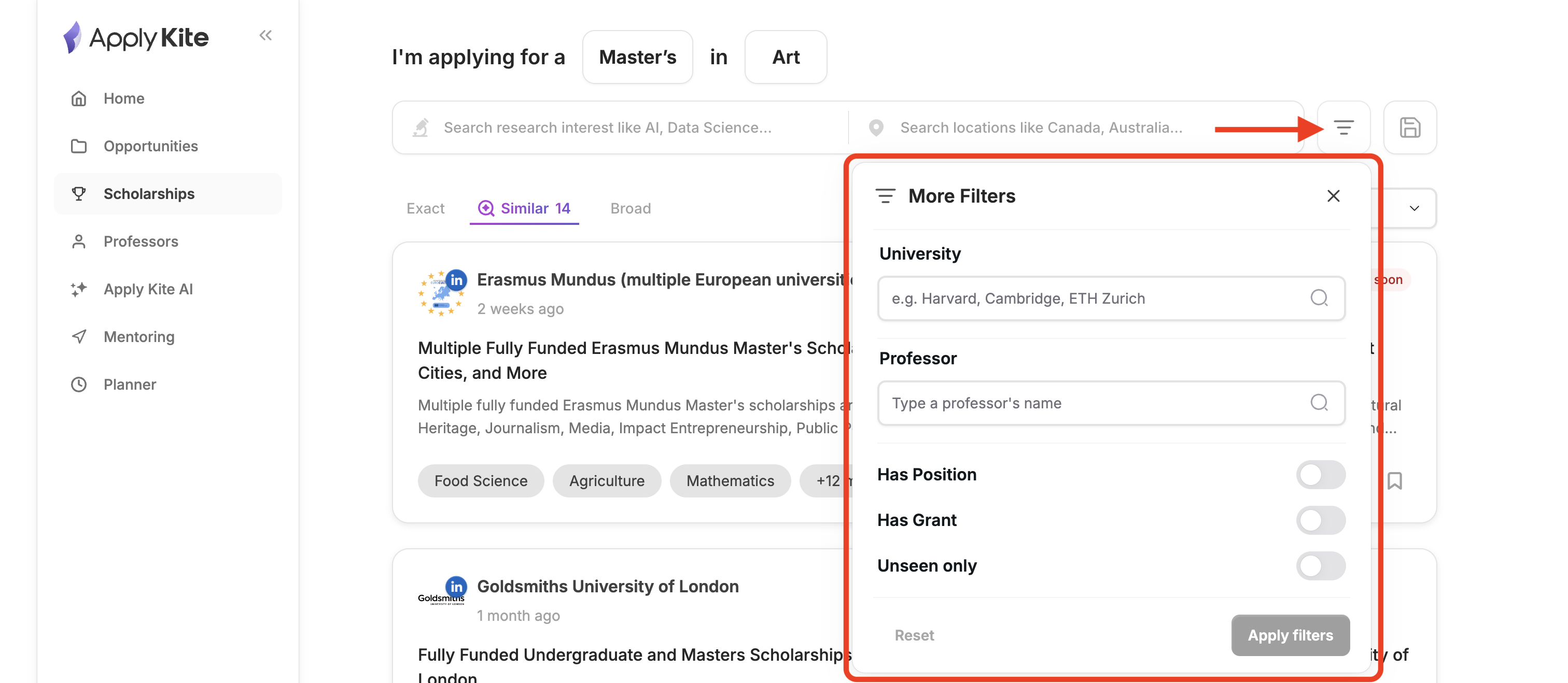
After entering your keywords, you can further filter the results by:
- University: Filter scholarships within a specific university (e.g., Jagiellonian University)
- Supervisor: Filter scholarships linked to a specific professor (if applicable)
- Source: Filter scholarships based on where they were collected from (social media or official university websites, etc.)
Saving Filters and Sorting
To make your workflow easier, you can apply your preferred filters once and then save them. This way, you don’t need to set everything again—just click Load filter and your saved filters will be applied.
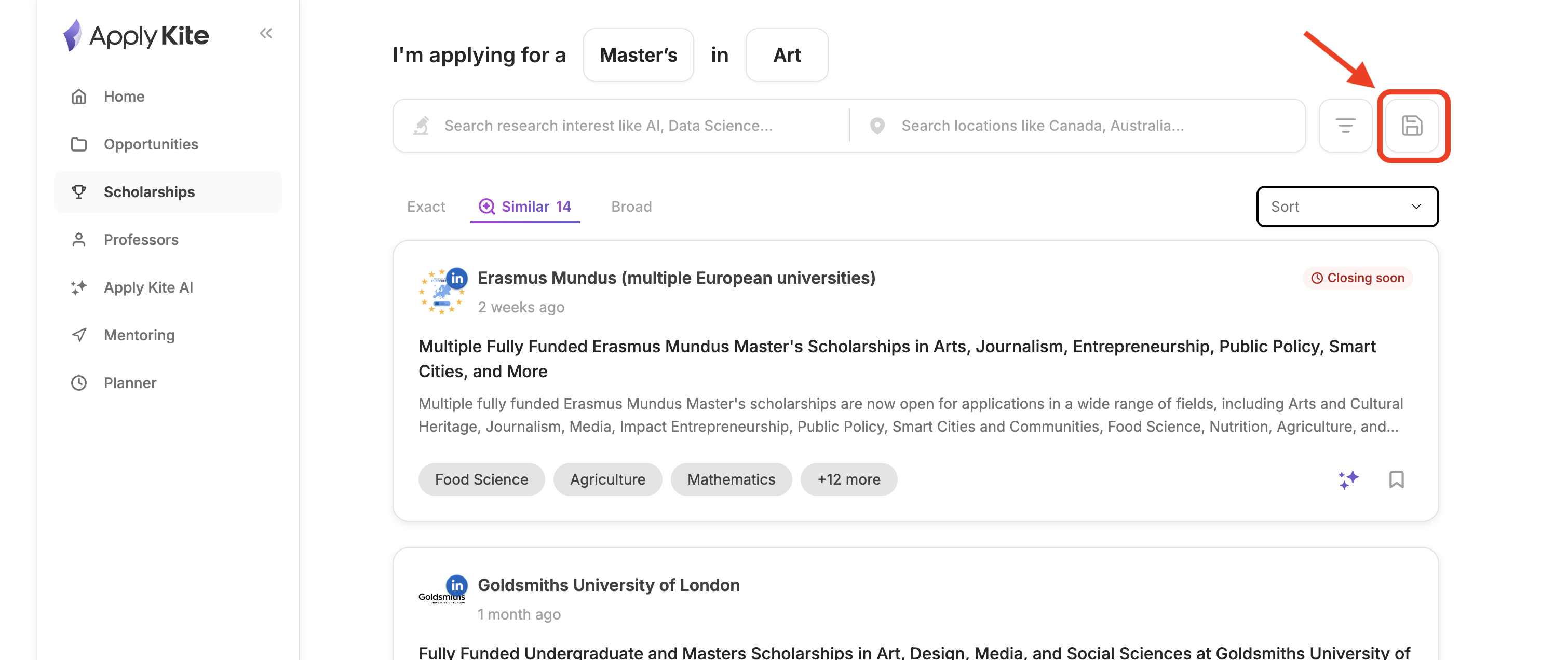
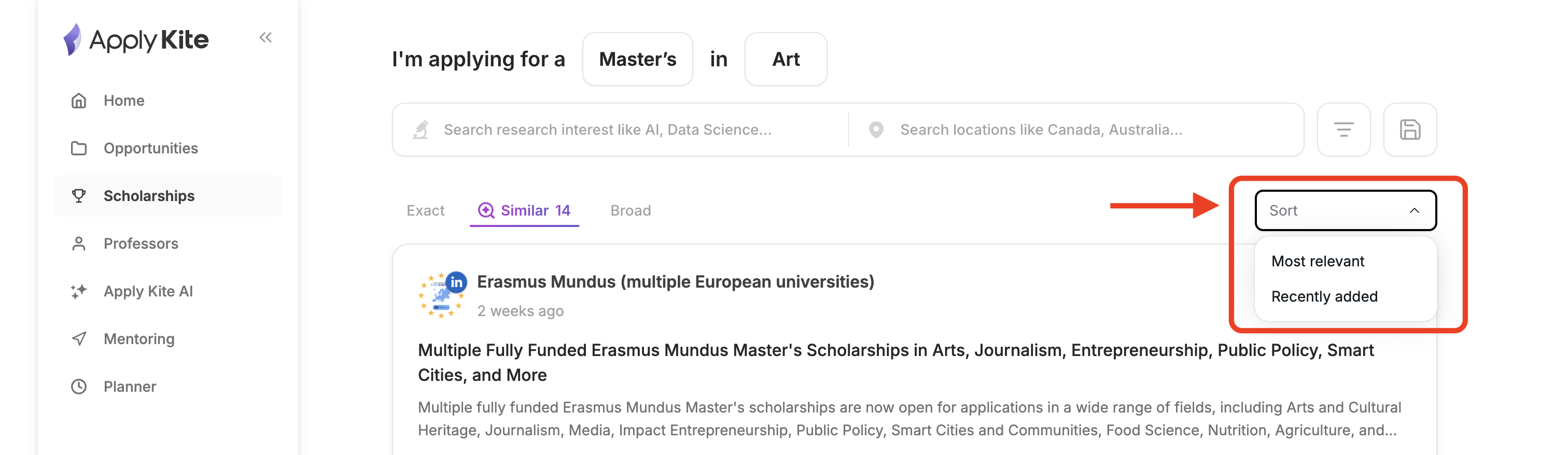
You can also sort scholarships by deadline, date added, or best match to your search.
How to Apply for a Scholarship
After finding scholarships using filters, you can open any scholarship to view full details.
On each scholarship page, you can see the university name, scholarship details, official links, application link, and more.
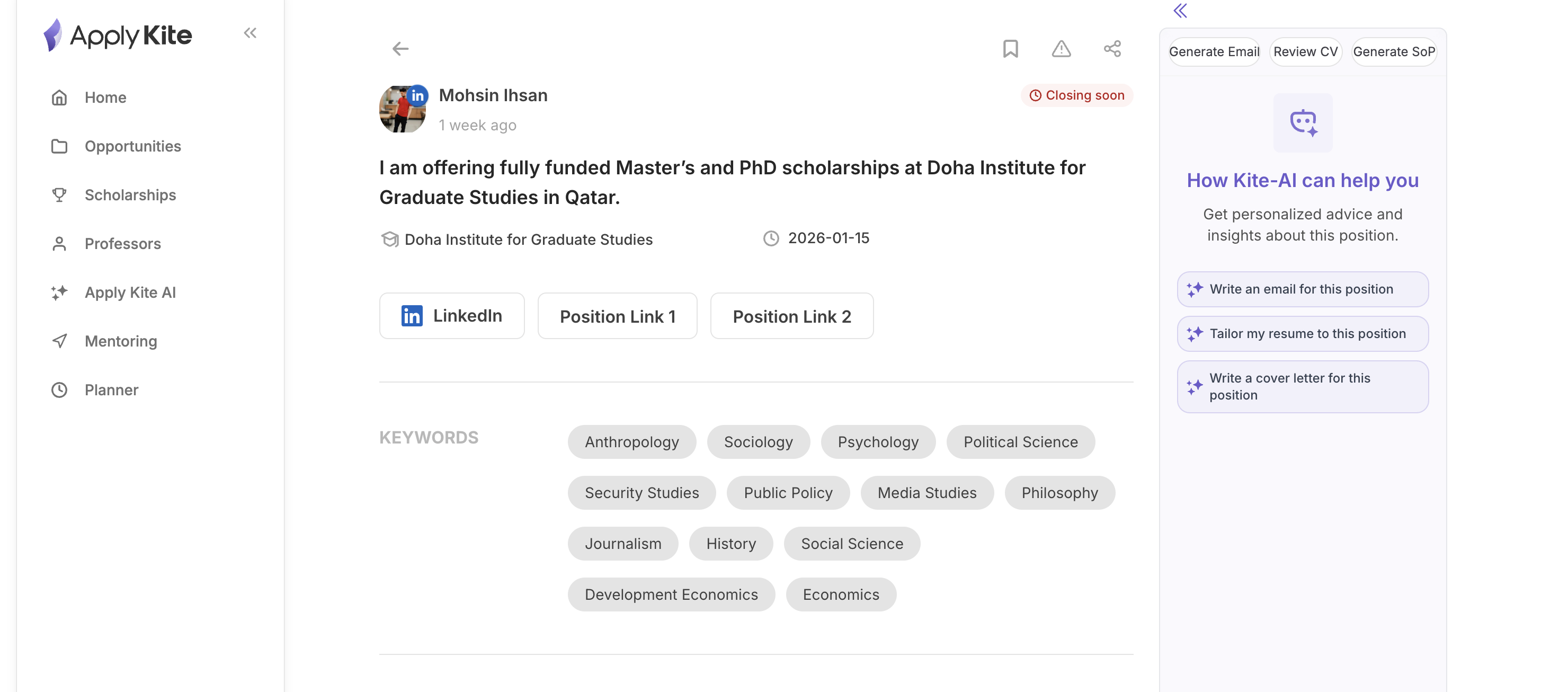
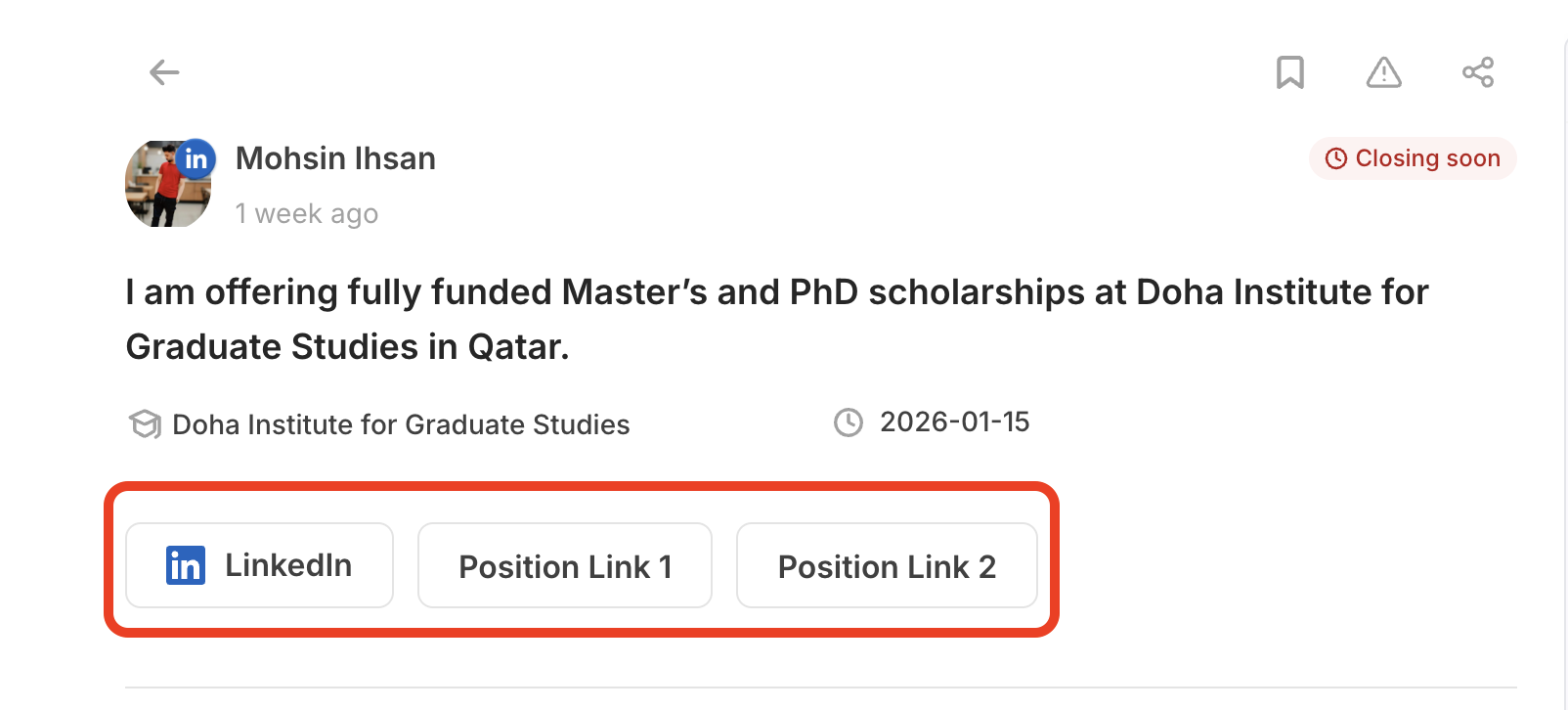
- At the bottom of the page, you can find the university link and the scholarship application link.
- From the top-right corner, you can do the following (from right to left):
- Report the scholarship if the information or link is incorrect.
- Add a note and share your opinion (note: these notes are visible to all users).
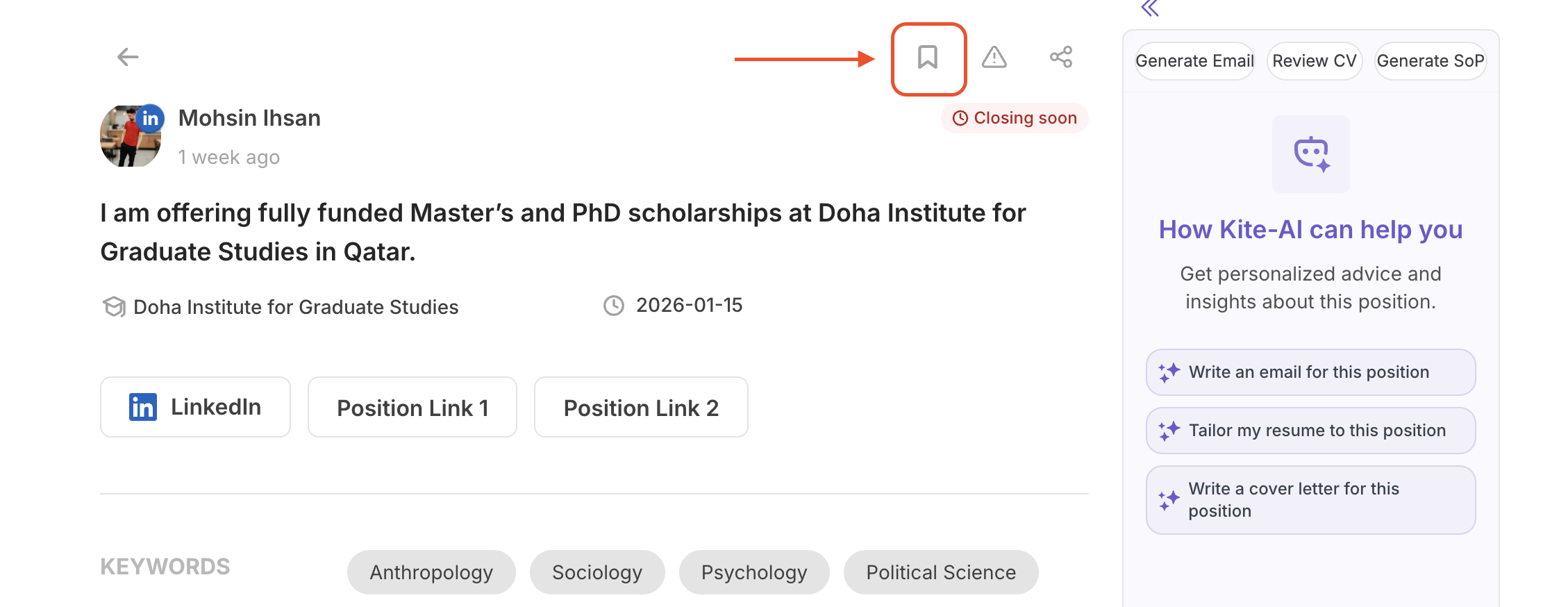
- Add the scholarship to your favorites—so you can track it later in Planner (explained below).
On the right side of the page, you’ll also see the ApplyKite chatbot.
If you’ve already added your CV, field, study level, etc., you can generate an email or SOP for this scholarship with a single click.
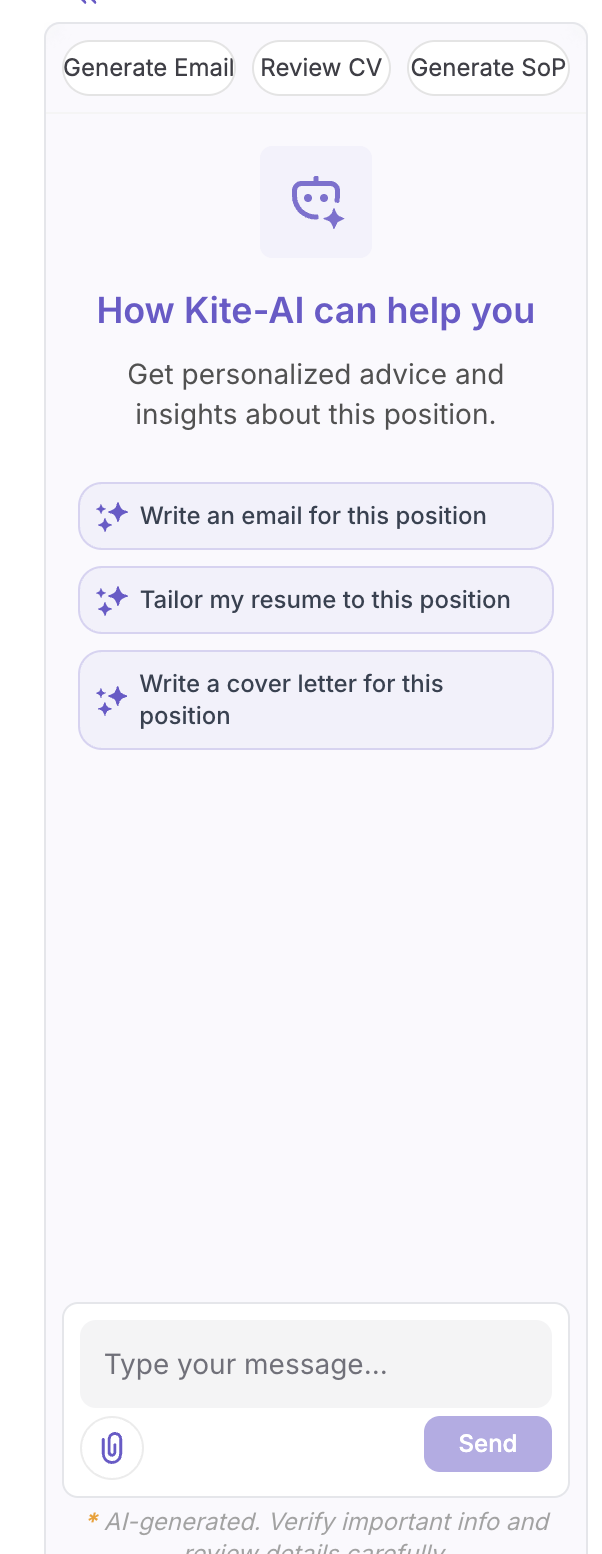
- Another feature is reviewing your CV against the scholarship requirements.
- The key benefit: you don’t need to manually enter information. ApplyKite AI updates your email, SOP, and CV based on the scholarship and generates a personalized version for you. This can significantly improve your chances.
- Also, you don’t need to waste time copy-pasting details—ApplyKite handles it automatically.
Using Scholarship Search History
Many applicants track scholarships using Google Sheets or Excel to remember what they applied for and what stage they’re in.
The good news: you don’t need to manually update spreadsheets anymore. Just go to Planner from your dashboard.
Here, you can review scholarships you viewed and update their status.
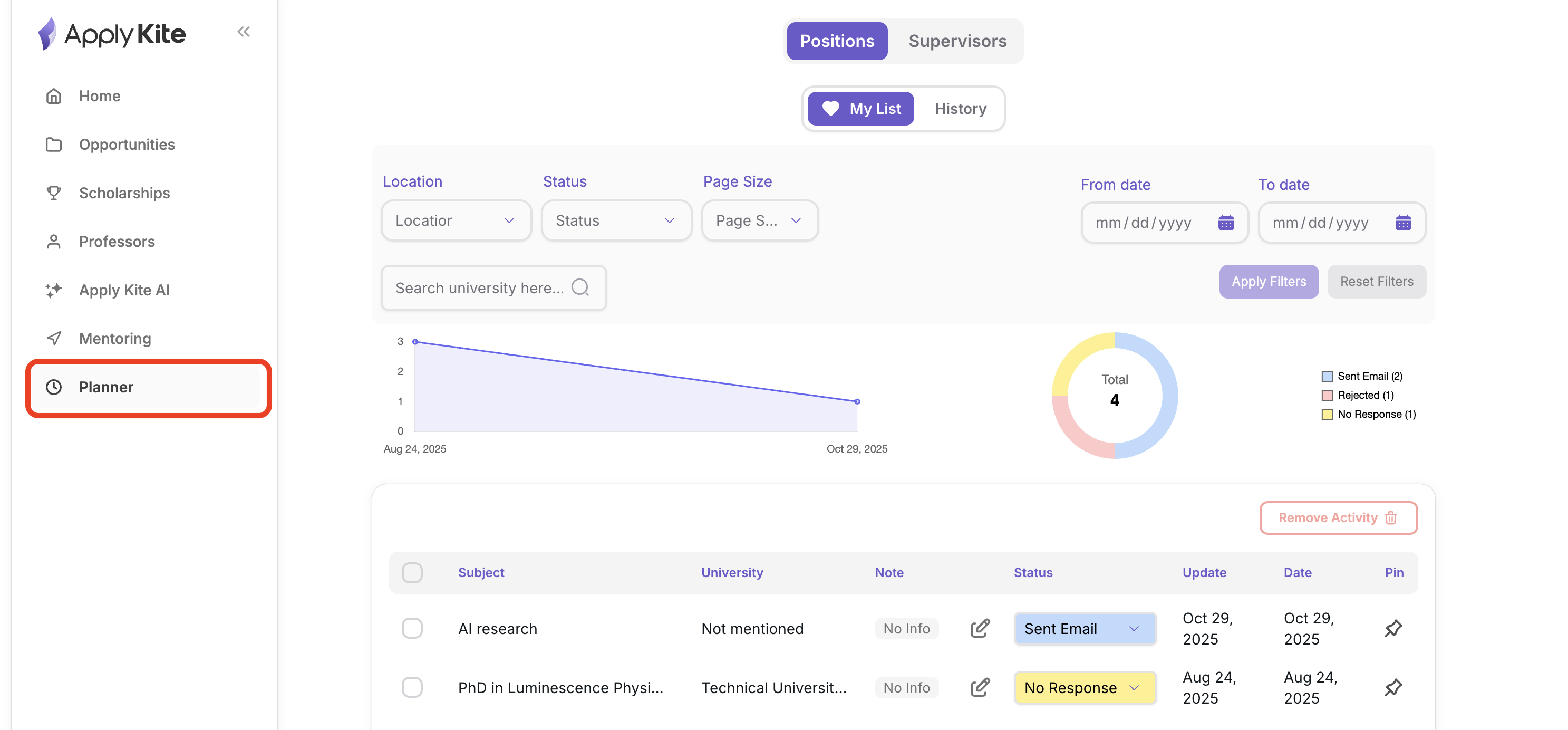
In this section, you can see each scholarship, date, status, and more.
To add a scholarship here, just click the heart icon on the scholarship page.
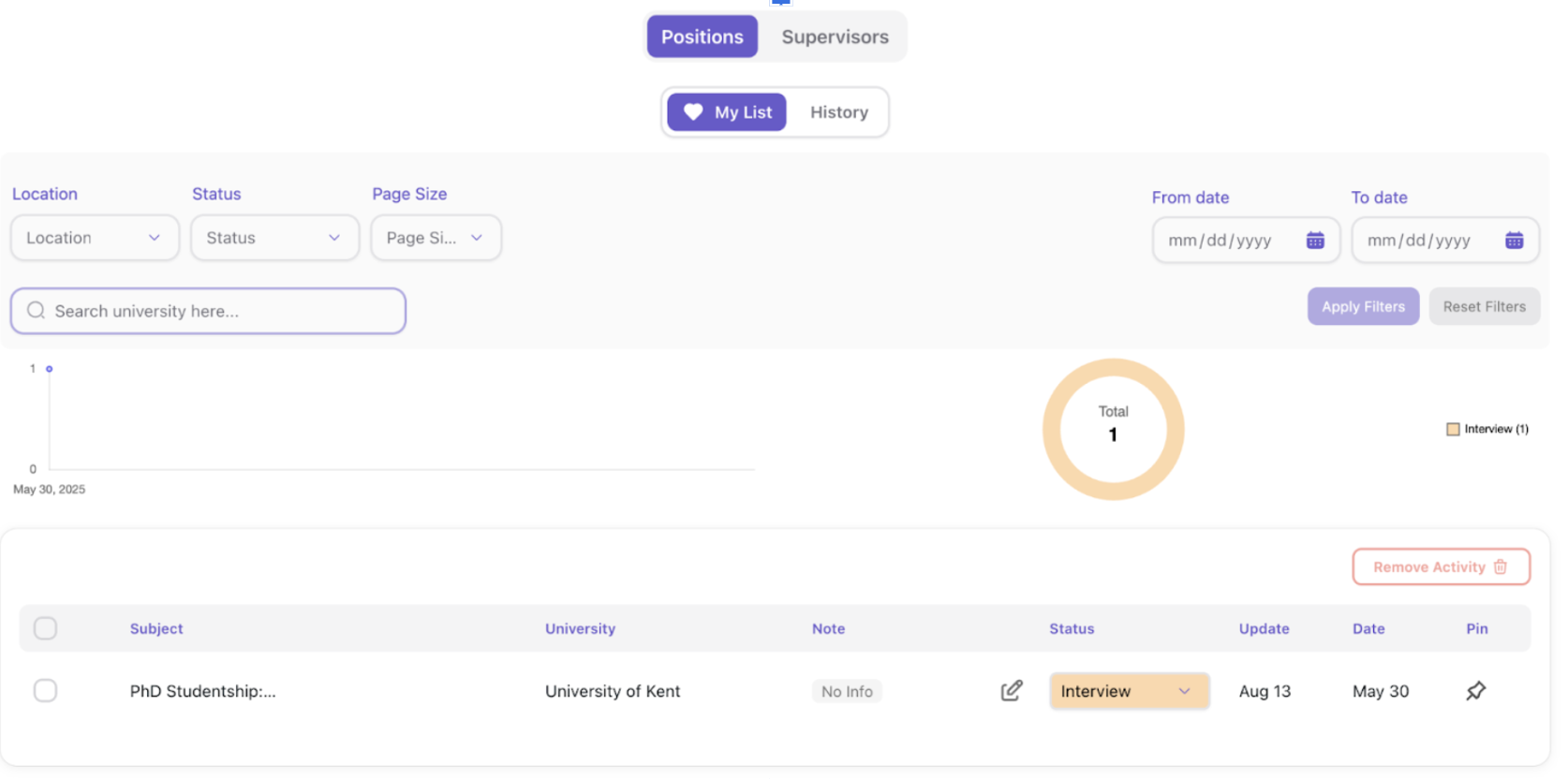
- You can view and filter items by date, status, country, and more.

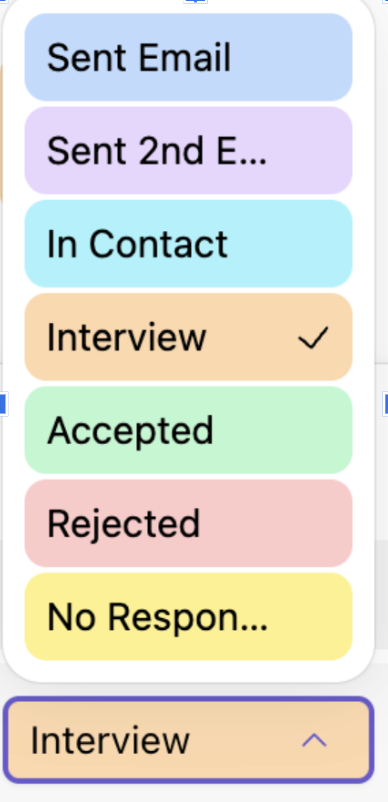
- You can update each scholarship’s status based on your progress:
-
For example, you add a scholarship to your favorites.
-
Then in your activity/planner, you can change the status to Sent Email after you contact the relevant department/supervisor (if applicable).
- You can also view your progress as charts.

FAQ
I search but I can’t find relevant scholarships!
- Most likely you’re using keywords that are too general. Try adding a more precise list of keywords related to your field. Also, make sure your profile field is not set to All.
Why can’t I see all results?
- For a better user experience, ApplyKite shows part of the results for free so you can explore the platform. To access all results and features, upgrade your account to Pro.
I search and nothing shows up!
- Your keyword list may be too limited.
- Your matching level may be too strict (e.g., only showing highly relevant results).
- Your selected filters may currently have no available results (for example, searching for a very specific combination like “Art + Canada” might return no results at this moment).
- Best solution: review and adjust your filters.
Where can I see the list of universities I already checked?
- Go to Planner → History.
How can I receive daily emails about professors in my field?
- Go to Settings from the menu and enable Alert.
Why are there no scholarships for some countries?
- Scholarship publishing timelines differ by country, so your target country might not have available scholarships during a specific time period.